Sunday, June 21, 2009

Rowmote Pro for iPhone: Review and Demo

If you’re like me, and you have done away with your cable subscription, and transformed your whole media center to Boxee, or Plex, then this review is for you. In fact, even if you don’t use Boxee or Plex, but have a computer connected to your TV that you’d like to control. This is also for you.

Since I got rid of my cable, I setup an iMac to take care of all my media. It was a nice setup, except I didn’t have full access to the computer, unless I had my laptop, and connected to it via LogMeIn or TeamViewer, or, for much less control, using the native Boxee remote for the iPhone, or even the Rowmote free application.

These were all fine and dandy, but I really wanted full access to the machine without having my laptop or another computer around. Before finding out about Rowmote Pro, or even before it ever existed, and I went and bought the Adesso Wirelsss Slimtyouch Mini-Mac, which I paid $80 for, and turned out to be a total waste of money, in short, very short range, and battery life lasts 2 days at best.


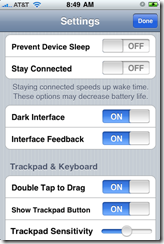
Enter Rowmote world. If you have an iPhone, you’re going to be blown away by what this app does! It’s only $4.99 – well, $4.99 + $199 or $299 at best if you don’t have an iPhone yet :) You may be familiar with the regular interface of Rowmote which looks something like this:

IMG_0362

However, you may not know this interface: IMG_0364  IMG_0363

IMG_0367IMG_0366Yup .. you’re getting a sweet interface to control your mouse and keyboard straight from the Rowmote application. In its original interface, Rowmote now supports over 17 applications, and obviously, anything you can do on the PC outside of the native Rowmote controls. 


Check out the video below for a live demonstration of Rowmote Pro. It’s definitely worth the $4.99.


Rowmote Pro Demonstration

Friday, June 19, 2009

VMWare View (VDI) client for HP T5540 (WinCE)

So, here I am sitting at my office trying to get VMWare View to work on an HP T5540 thin client. Had no idea where to get the client for. the 11Mb file that you get from VMWare is entirely too big to be intalled on that client. This is a Win CE operating system, which is so horrible to deal with anyway.

Google searches failed me left and right, everywhere I looked. People said that the T5540 can only be used in a remote desktop environment, which, of course, will lose out on the capability of VDI, dynamic provisioning, multiple desktop availability, Multimedia, and USB. Essentially, all the advantages of VDI would’ve gone down the drain. so that was not an option for me.

Some mentioned JRE version for Win CE, on which the VDI client will run. I had 2 problems with this one:

  1. I couldn’t easily find a free JRE client for WinCE
  2. For the life of me, I could not figure out how to get VDI Manager to use JRE.

So, I went ahead with my research, until I stumbled upon something called the VDI Broker Add-On for Microsoft Windows CE.  That can be found here: http://bit.ly/16M38p

If you look closely at the description of this download, however, you will find that it says this:

"This is an Altiris package that contains the VDM Broker Agent for the supported thin client models running a supported operating system.”

Hmm.. I thought I’d try it anyway. Downloading the file wasn’t a problem. Running the file, however, was. It just plain wouldn’t run from the T5540.

So poking around some more, I finally got the solution. Unzip the EXE that is supposedly designed for Altiris, and you will find a little file (145Kb)  called VDMClient.cab, which will do the trick. Now, copy this to your T5540, and run it, and you shall have your VDI client available.

This took me about an hour of research to figure out, since there is absolutely no documentation I could find about it anywhere!. 

Hopefully this will help someone that may be having the same problem.

Sysprep and VMWare View: the solution

I’m in the process of implementing VMWare vSphere 4.0 at work, with an add-on for VMWare View.

I had been working with ESXi for a while, so the switch to ESX 4 wasn’t too hard. On the View side, the learning curve was quite easy as well. There’s little that needs to be done in VDI Manager, and the rest is managed just like it would be managed on a physical machine deployed.

For those techies reading this that haven’t dealt with sysprep yet, it’s a Microsoft utility, which you can install, and it ends up residing in C:\Windows\System32\deploy.cab , unzipping this cab will reveal a set of files required to sysprep a machine.

Essentially, sysprep is used when mass deploying desktops on the same network, this could be problematic, because each computer has a SID which is a long number that identifies the computer on the network. By imaging a hard drive without sysprep at all, there will be conflicts, especially if this machine is part of a domain. Part of sysprep’s job is to strip out these SIDs and regenerate them when the machine is re-imaged.  Other things sysprep can do is unattended installations, by automating entering the Windows license key, joining to the domain (which is the main point of this article), setting time zones, IPs, etc …  (If there is any interest in speaking in more detail about sysprep, post it in the comments, and I can write up an article dedicated to that.)

For those who ARE very familiar with sysprep, you would know that it’s not the most reliable tool to join the machine to the domain when a workstation is booted up with the mini-setup.

Let’s skip ahead and get into VMWare View world. For VDI Manager to work correctly and create desktop pools, the process of creating machines and provisioning them for users has to be flawless, otherwise, the purpose of VDI manager is in vain. The fact that sysprep wasn’t working, meant that the machines weren’t joined to the domain. One failing step is enough to fail everything.

So I decided to create a solution that will allow me to do so much more than sysprep because it creates a framework of setting up a machine through a script that can be expanded as needed. All this while keeping the number of my templates to a minimum. In my case, for a basic user template, a total of ONE!

Keep in mind, in my environment, I have 3 domains, (forest root, and 2 child domains), Machines that are in the VDI Manager desktop pools have to go to their corresponding locations in Active Directory, and even more broadly, to the correct domain.

I decided to leverage the information in the customization wizard in vCenter to provide the information needed for the script to know what domain to add the machine to, and what OU to place it in.

The customization specification manager looks something like this:

Capture 3

In the settings one of these templates, 2 key screens that need to be setup correctly:

Capture 4

This first screen will tell the virtual machine to call itself by the same name as the VDI pool naming scheme is setup as. So if the VDI pool is setup to name the machine as labmachine- with an increasing sequence, my machines will start to automatically pop up with the names: labmachine-1 , labmachine-2, labmachine-3 , for as many machines that I allow in the pool.

The second screen is very simple, and often overlooked:

Capture 7

The second part in this screen is the one that doesn’t work. The part I want to direct your attention to is the “Workgroup” field. In this screenshot, the workgroup is set to “WORKGROUP” for our purposes, I’m changing this workgroup to the NetBios name of the 3 domains I have. I know this will not join the machines to the domain, but this will be leveraged by the script that will get that name and perform the appropriate actions.

Now that this environment is ready. I create a script with Kixtart (which very much like VB, only more geared towards login scripts).


   1: ;region Script Settings
   2: ;<ScriptSettings xmlns="http://tempuri.org/ScriptSettings.xsd">
   3: ;  <ScriptPackager>
   4: ;    <process>kix32.exe</process>
   5: ;    <arguments />
   6: ;    <extractdir>%TEMP%</extractdir>
   7: ;    <files />
   8: ;    <usedefaulticon>true</usedefaulticon>
   9: ;    <showinsystray>false</showinsystray>
  10: ;    <altcreds>false</altcreds>
  11: ;    <efs>true</efs>
  12: ;    <ntfs>true</ntfs>
  13: ;    <local>false</local>
  14: ;    <abortonfail>true</abortonfail>
  15: ;    <product>VDI Workstation Joiner</product>
  16: ;    <internalname>VDIWKJoin</internalname>
  17: ;    <version>1.0.0.1</version>
  18: ;    <versionstring>1.0.0.1</versionstring>
  19: ;    <description>Script to run at the startup of a machine after being sysprepped that will join it to the domain, and install LANDesk on it. </description>
  20: ;    <comments />
  21: ;    <company>Chino Valley Unified School District</company>
  22: ;    <includeinterpreter>false</includeinterpreter>
  23: ;    <forcecomregistration>false</forcecomregistration>
  24: ;    <consolemode>false</consolemode>
  25: ;    <EnableChangelog>false</EnableChangelog>
  26: ;    <AutoBackup>false</AutoBackup>
  27: ;    <snapinforce>false</snapinforce>
  28: ;    <snapinshowprogress>false</snapinshowprogress>
  29: ;    <snapinautoadd>0</snapinautoadd>
  30: ;    <snapinpermanentpath />
  31: ;  </ScriptPackager>
  32: ;</ScriptSettings>
  33: ;endregion
  34:  
  35: ;
  36: ; Script Packager Template
  37: ; Creates variables For dynamic use by packaged executables and normally executed scripts
  38: ;
  39: ; (C) 2004-06 iTripoli, Inc.
  40: ; 
  41:  
  42:  
  43: If %ISEXE% = "1"
  44:     $HKCU = %ASEHKCU%        
  45:     $CURDIR = %ASEEXEPATH%            
  46:     $SCRIPTARGS = %ASEEXEARGS%    
  47:     $FullID = %ASEUSERID%    
  48:     $UserID = Right($FullID, ( Len($FullID) - (InStr($FullID, "\")) ))
  49: Else
  50:     $HKCU = "HKEY_CURRENT_USER"
  51:     $CURDIR = @CURDIR
  52:     $SCRIPTARGS = "n/a" ; KiX lets you specify variable values, but not open strings
  53:     $FullID = @DOMAIN + "\" + @USERID
  54:     $UserID = @USERID
  55: EndIf
  56:  
  57: Break ON
  58: Global $DEBUG $DEBUG = 0
  59: $ = SetOption("WrapAtEol","ON")
  60:  
  61: If Exist("C:\Windows\system32\stage1.dat") 
  62:     Use Z: /DEL
  63:     Use Z: "\\do-ld-core\wwwAgent\Windows_Agents" /USER:CVUSD\username /Password:*****
  64:     Shell '%COMSPEC% /c xcopy "z:\Windows_Agent_and_Antivirus_with_status.exe" "C:\"'
  65:     Use Z: /DEL 
  66:     Shell '%COMSPEC% /c start /wait /d"c:\" Windows_Agent_and_Antivirus_with_status.exe'
  67:     Shell '%COMSPEC% /c echo "Ready" > c:\windows\system32\ready.dat'
  68:     Del "C:\Windows_Agent_and_Antivirus_with_status.exe"
  69:     Shutdown("", "Computer shutting down - Ready", 5, 1, 1)
  70:     
  71:     Exit 0
  72: EndIf
  73:  
  74: ; Get Workstation name, and school number
  75: Global $ComputerName $ComputerName = @WKSTA
  76: Global $Prefix $Prefix = (Trim(Left($ComputerName, ( InStr($ComputerName, "-") - 1 ))))
  77:  
  78: ; Get WORKGROUP NAME
  79: Global $WORKGROUP
  80: $wmiColl = GetObject("WinMgmts:root/cimv2").ExecQuery("Select * FROM Win32_ComputerSystem ")
  81: For Each $wmiObj in $wmiColl
  82:     $WORKGROUP = $wmiObj.Domain
  83:     If $DEBUG = 1
  84:         ? "DEBUG: WORKGROUP: " + $WORKGROUP
  85:     EndIf    
  86: Next
  87:  
  88: ; Check to make sure that the combination of the Computer name and the Site match. A machine name starting with "DO" can only be in the CVUSD domain. 
  89: If ($Prefix = "do" And Not $WORKGROUP = "cvusd")
  90:     $ = MessageBox("Machine name indicate that it needs to reside in the CVUSD domain. A different domain has been specified." + Chr(13) + Chr(10) + "Domain name specified: $WORKGROUP" + Chr(13) + Chr(10) + "Machine name specified: $ComputerName", "Domain and machine name do not match. ", 16)
  91:     Exit 1
  92: EndIf
  93:     
  94: Select
  95:     Case InStr($Prefix, "do") 
  96:         Global $NetDomCmd$NetDomCmd = $Prefix
  97:     Case isNumeric($Prefix) = 0
  98:         $SchoolNumber = $Prefix
  99:         If $DEBUG = 1 
 100:             ? "DEBUG: School number detected, running SQL Query"
 101:             ? "DEBUG: School number: " + $SchoolNumber + " - Prefix: " + $Prefix
 102:         EndIf
 103:         
 104:         
 105:         ; Get School OU for adding in Active Directory correct OU
 106:         $cnstring = 'Provider=SQLOLEDB.1;Password=*****;Persist Security Info=True;User ID=username;Initial Catalog=UserNameStore;Data Source=do-mgtweb;'
 107:         $cmdtext = 'SELECT TOP 1 OUName, SchoolNumber FROM AssetInfo WHERE (SchoolNumber=' + $SchoolNumber + ')'
 108:         $cn = CreateObject("adodb.connection") 
 109:         $cmd = CreateObject("adodb.command") 
 110:         $cn.connectionstring = $cnstring 
 111:         $cn.Open 
 112:         $cmd.activeconnection = $cn 
 113:         $cmd.commandtext = $cmdtext 
 114:         $rs = CreateObject("adodb.recordset") 
 115:         $rs.cursortype = 3 
 116:         $rs.locktype = 3 
 117:         $rs.Open($cmd)
 118:         
 119:         While Not $rs.EOF And Not $rs.BOF
 120:             Global $OUName $OUName =  $rs.Fields.Item("OUName").Value
 121:             Global $SchoolNumber $SchoolNumber = $rs.Fields.Item("SchoolNumber").Value
 122:             $rs.MoveNext
 123:         Loop
 124:                         
 125:         If $DEBUG = 1 
 126:             ? "DEBUG: OU Name: " + $OUName ? "DEBUG: SchoolNumber: " + $SchoolNumber
 127:         EndIf
 128:         
 129:         $rs.Close
 130:         $cn.Close
 131:     Case 1
 132:         $ = MessageBox("Unrecognized machine format - Cannot continue. Machine name needs to start with DO or the School Number. " + Chr(13) + Chr(10) + "i.e: do-machinename or 309-machinename", "Unrecognized machine format", 16)
 133:         Exit 1
 134: EndSelect
 135:  
 136:  
 137:  
 138: Select 
 139:     Case $WORKGROUP = "CVUSD"
 140:         Global $OU $OU = $OUName
 141:         Global $Domain $Domain = "CVUSD\do-dc2.chino.k12.ca.us"
 142:         Global $DomainAdmin $DomainAdmin = "CVUSD\username"
 143:         Global $DomainPassword $DomainPassword = "*****"
 144:         If $DEBUG = 1
 145:             ? "DEBUG: OU: " + $OU ? "DEBUG: Domain: " + $Domain ? "DEBUG: Domain Admin: " + $DomainAdmin ? "DEBUG: Domain Password: " + $DomainPassword
 146:         EndIf
 147:         domainjoin($Domain, $DomainAdmin, $DomainPassword,, "Do")
 148:         Shutdown("", "Computer shutting down - Stage 1 Complete",5, 1, 1)
 149:     Case $WORKGROUP = "STUDENT"
 150:         ;? "IN STUDENT"
 151:         Global $OU $OU = 'ou=workstations,ou='+ $OUName + ',ou=Schools,dc=student,dc=chino,dc=k12,dc=ca,dc=us' 
 152:         Global $Domain $Domain = "STUDENT\do-studc.student.chino.k12.ca.us"
 153:         Global $DomainAdmin $DomainAdmin = "STUDENT\username"
 154:         Global $DomainPassword $DomainPassword = "*****"
 155:         If $DEBUG = 1
 156:             ? "DEBUG: OU: " + $OU ? "DEBUG: Domain: " + $Domain ? "DEBUG: Domain Admin: " + $DomainAdmin ? "DEBUG: Domain Password: " + $DomainPassword
 157:         EndIf
 158:         domainjoin($Domain, $DomainAdmin, $DomainPassword, $OU, $SchoolNumber)
 159:         Shutdown("", "Computer shutting down - Stage 1 Complete",5, 1, 1)
 160:     Case $WORKGROUP = "STUDENT2"
 161:         Global $OU $OU = 'ou=workstations,ou=' + $OUName + ',ou=Schools,dc=student2,dc=chino,dc=k12,dc=ca,dc=us'
 162:         Global $Domain $Domain = "STUDENT2\do-studc2.student2.chino.k12.ca.us"
 163:         Global $DomainAdmin $DomainAdmin = "STUDENT2\username"
 164:         Global $DomainPassword $DomainPassword = "*****"
 165:         If $DEBUG = 1
 166:             ? "DEBUG: OU: " + $OU ? "DEBUG: Domain: " + $Domain ? "DEBUG: Domain Admin: " + $DomainAdmin ? "DEBUG: Domain Password: " + $DomainPassword
 167:         EndIf
 168:         domainjoin($Domain, $DomainAdmin, $DomainPassword, $OU, $SchoolNumber)
 169:         Shutdown("", "Computer shutting down - Stage 1 Complete",5, 1, 1)
 170:     Case 1
 171:         $ = MessageBox("Unrecognized domain - Cannot continue. Domain is not recognized. This should have been specified in the Customization Specification in vCenter" + Chr(13) + Chr(10) + "Valid domain names: CVUSD, STUDENT, STUDENT2", "Unrecognized Domain", 16)
 172:         Exit 1
 173: EndSelect
 174:  
 175: ; FUNCTIONS
 176:  
 177: Function domainjoin($Domain, $DomainAdmin, $DomainPassword, OPTIONAL $OU, $Location)
 178:     If $DEBUG = 1 
 179:         If $WORKGROUP = "CVUSD"
 180:             $OU = "CN=Computers,DC=chino,DC=k12,DC=us"
 181:         EndIf
 182:         ? "Fn DEBUG: OU: " + $OU 
 183:         ? "Fn DEBUG: Location: " + $Location                    
 184: EndIf
 185:     
 186:     Select
 187:         Case $Location = "do"
 188:             Shell '%COMSPEC% /c c:\windows\netdom.exe join ' + @WKSTA + ' /d:' + $Domain + ' /UserD:"' + $DomainAdmin + '" /PasswordD:' + $DomainPassword
 189:                 If $DEBUG = 1
 190:                     ? ? 'DEBUG: Shell "%COMSPEC% /c c:\windows\netdom.exe join ' + @WKSTA + ' /d:' + $Domain + ' /UserD:"' + $DomainAdmin + '" /PasswordD:' + $DomainPassword
 191:                 EndIf
 192:             Shell '%COMSPEC% /c echo "Stage 1" > c:\windows\system32\stage1.dat'    
 193:         Case isNumeric($Location) = 0
 194:             Shell '%COMSPEC% /c c:\windows\netdom.exe join ' + @WKSTA + ' /d:' + $Domain + ' /UserD:"' + $DomainAdmin + '" /PasswordD:' + $DomainPassword + ' /ou:"' + $OU + '"'
 195:                 If $DEBUG = 1
 196:                     ? ? 'DEBUG: Shell "%COMSPEC% /c c:\windows\netdom.exe join ' + @WKSTA + ' /d:' + $Domain + ' /UserD:"' + $DomainAdmin + '" /PasswordD:' + $DomainPassword + ' /ou:"' + $OU + '"'
 197:                 EndIf
 198:             Shell '%COMSPEC% /c echo "Stage 1" > c:\windows\system32\stage1.dat'
 199:         Case 1    
 200:             $ = MessageBox("The location passed to function is not recognized. " + Chr(13) + Chr(10) + "value passed need to be - do - or a school number. ", "Function error", 16)
 201:             Exit 1
 202:     EndSelect
 203: EndFunction
 204:     
 205: Function isNumeric($var)
 206:     If $DEBUG = 1
 207:         ? "Fn DEBUG: Reached iNumeric Function"
 208:     $IsNumeric = Not IIf($var = 0.0 + $var, 1, 0)
 209: EndFunction
 210:  
 211:  
 212:  
 213:  
 214:  
 215:  
 216:  

What this script does is run on the first login after the Virtual Machine has been deployed by VDI Manager and will do the following:

  • It will check to see if the machine name starts with a prefix acceptable, in my case, it was either DO for the district office, or a 3 digit number for any of the schools. This means that any of the provisioned VMs have to match this naming convention or an error will be thrown upon login.
  • If the machine starts with “do”, then it’s a valid workstation name, next, the script will check for the WORKGROUP that we specified in the customization specification manager, by doing a WMI call to root/cimv2 database, and get the computer workgroup name. This workgroup returned,  will correspond to one of the 3 domains. Anything else will fail.
  • In the case of DO, not much is required, all machines are dumped into one OU. In the case of the schools, it’s more complicated: in my case, computers sit in different OUs, so  in the case of a computer name that starts with a number (corresponding to a school), a database (that I created)  query is made that will get me the corresponding OU for the school in question.
  • Now that all the information is gathered, the script will continue on to run the Netdom command to join the machine to the domain.
  • After this is done, the script will raise a flag  to create a file to let the system know that it’s been already setup.

This script is very flexible because it’s being run independently from sysprep. I trigger it from the Programs/All Users/startup.bat, which calls another batch file:


   1: @echo off
   2:  
   3: IF EXIST "c:\windows\system32\ready.dat" GOTO DELETEWSSETUP
   4: IF EXIST "c:\windows\system32\wssetup.exe" GOTO SETUP
   5: GOTO END
   6:  
   7: :DELETEWSSETUP
   8: DEL C:\Windows\system32\wssetup.exe
   9: GOTO EXIT
  10:  
  11: :SETUP
  12: c:\windows\system32\wssetup.exe
  13: GOTO EXIT
  14:  
  15: :END
  16: GOTO EXIT
  17:  
  18: :EXIT
  19:  

This script will trigger the main vbscript which is represented as wssetup.exe. I encoded it in an exe, to hide any sensitive information in the script. i.e: database and domain passwords.

The rest of it just monitors the environment to make sure that everything has been ran. Once it has, and it finds the flag specified by the original script. It deletes that original script leaving no trace behind it. At this point the machine is ready to go.

This setup is very flexible, because it allows the adding of any number of functions to run at the setup of the machines prior to the users even touching them. Think, install applications, anti-virus software, customization, etc…